
 by
by Bulk upload of banners and video creatives
The bulk upload feature allows you to add multiple banners or videos to the system at once without creating each creative manually.
Bulk upload of banners
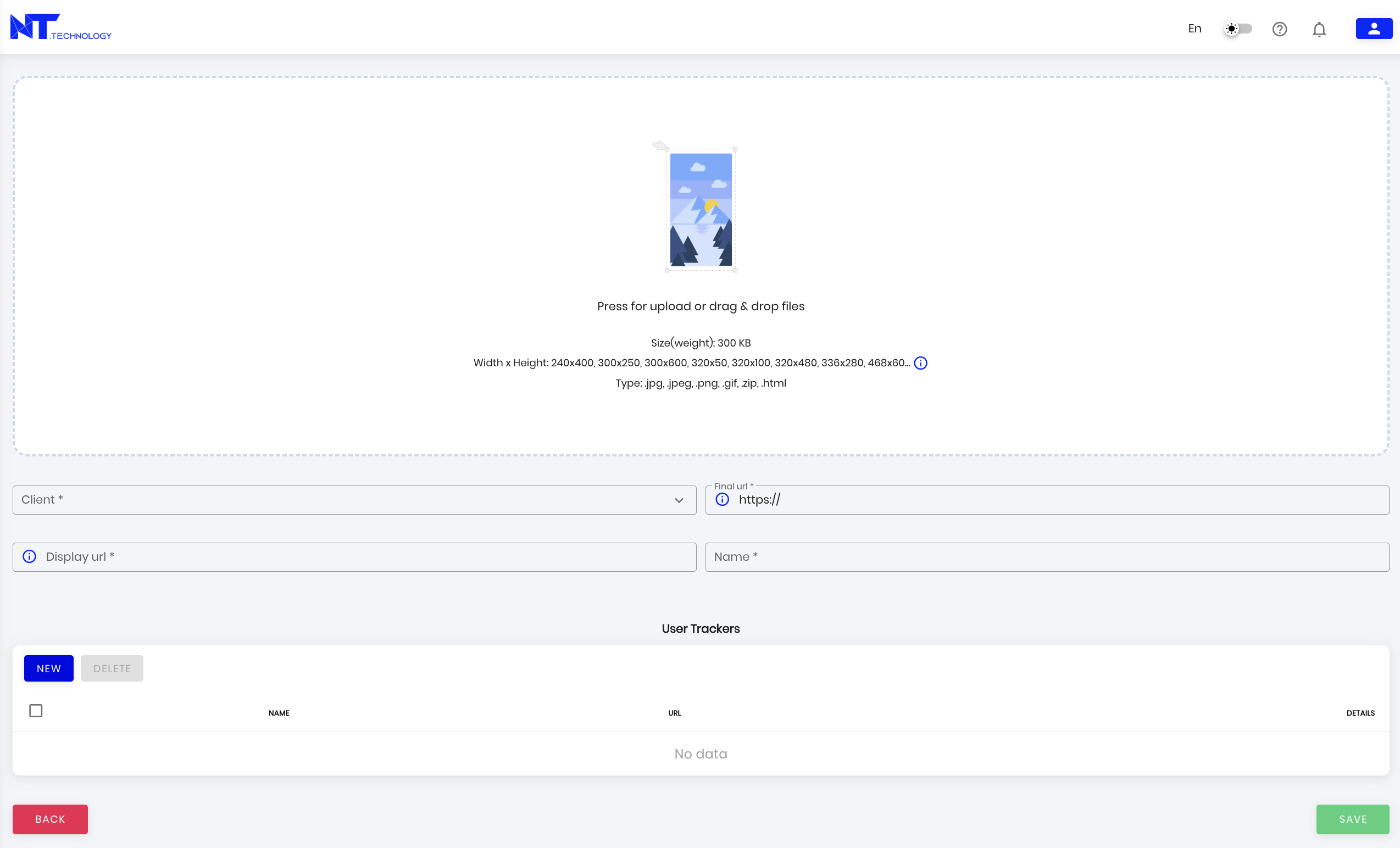
To add banners, drag and drop the files into the upload area or click it to select files from your device.
The following requirements apply to banners:
- file size: up to 300 KB;
- supported sizes: 240×400, 300×250, 300×600, 320×50, 320×100, 320×480, 336×280, 468×60, and others;
- supported formats: .jpg, .jpeg, .png, .gif, .zip, .html.
After uploading the files, fill in the following fields:
- Client – select the client for whom the creatives are being created.
- Final URL – a required field.
- Display URL – the website address that the user sees in the ad. It may differ from the final URL.
- Name – after upload, the system assigns a name automatically. You can change it if needed.
For banners, you can add third-party verification trackers without restrictions. To do this, go to the User Trackers section, click New, select the tracker type – click or impression – and enter the URL to which the information will be sent.
After filling in all required fields, click Save.
Bulk upload of video creatives
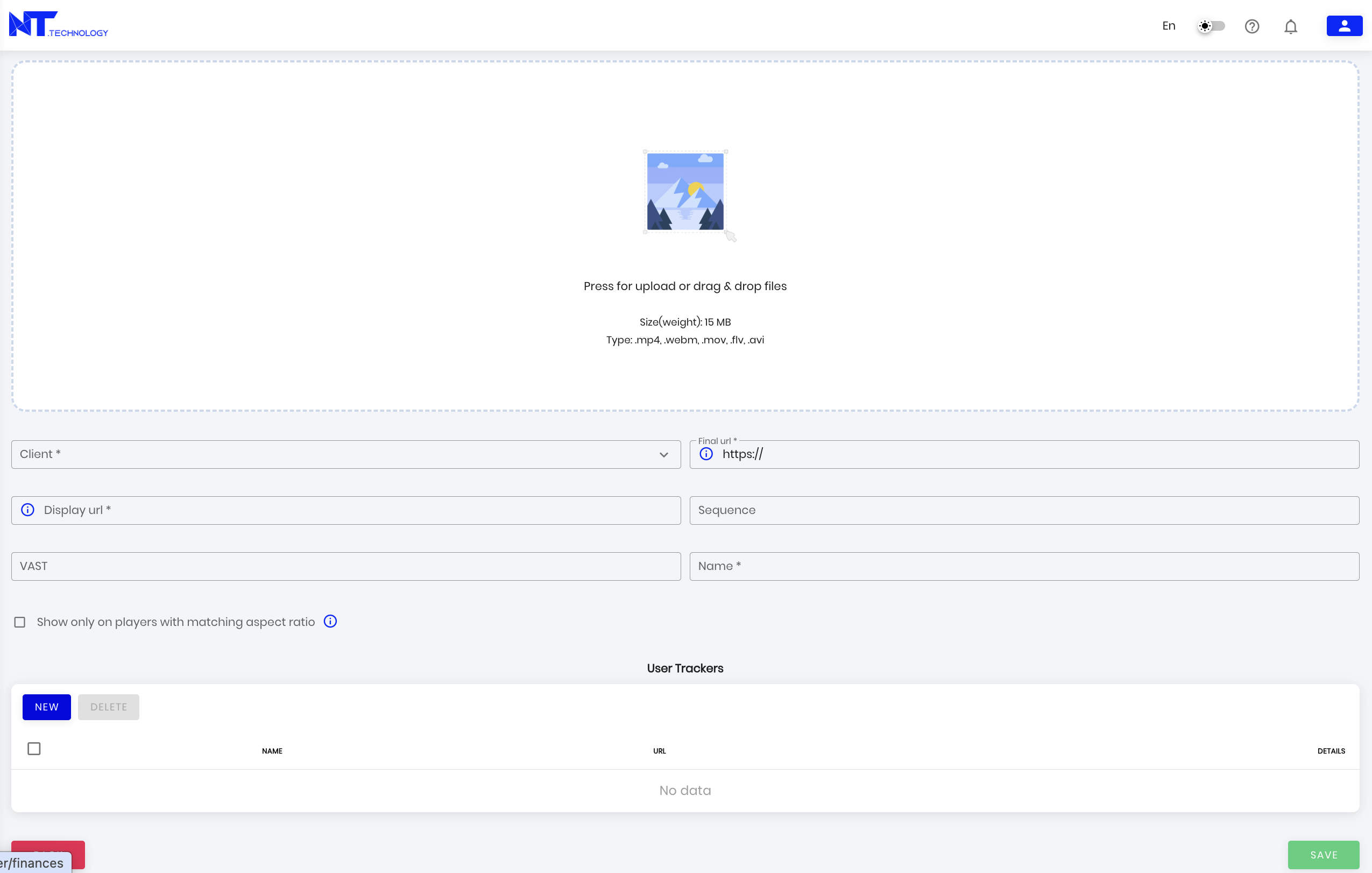
To add videos, drag and drop the files into the upload area or click it to select files from your device.
The following requirements apply to videos:
- file size: up to 15 MB;
- supported formats: .mp4, .webm, .mov, .flv, .avi.
After uploading the files, fill in the following fields:
- Client – select the client for whom the creatives are being created.
- Final URL – a required field.
- Display URL – the website address that the user sees in the ad. It may differ from the final URL.
- Sequence – specify the position of the video ad within the ad break if it is important for the placement: 1 – first, 2 – second, 3 – third. Leave this field empty if the position does not matter.
- VAST – enter the VAST URL if needed.
- Name – after upload, the system assigns a name automatically. You can change it if needed.
For video creatives, the Show only on players with matching aspect ratio setting is also available. If this option is enabled, the system will show the creative only on players whose aspect ratio matches the uploaded video.
For videos, you can add third-party verification trackers without restrictions. To do this, go to the User Trackers section, click New, select the tracker type, and enter the URL to which the information will be sent.
Available tracker types:
- Click;
- Complete;
- First quartile;
- Impression;
- Midpoint;
- Mute;
- Custom – any interaction with the video;
- Pause;
- Player collapse;
- Player expand;
- Resume;
- Rewind;
- Skip;
- Start;
- Third quartile;
- Unmute.
After filling in all required fields, click Save.
Before saving
Before saving, make sure that:
- all required fields are filled in;
- the files meet the requirements for size, format, and, for banners, creative dimensions;
- the final URL is correct;
- the creative name makes it easy to find the creative in the list.
If a file does not meet the requirements, the system may not upload it or may not allow you to save the creative.