
 by
by A creative group is a mandatory component of any campaign and can only be created after selecting the campaign type (Audio, Video, Banner, or Native).
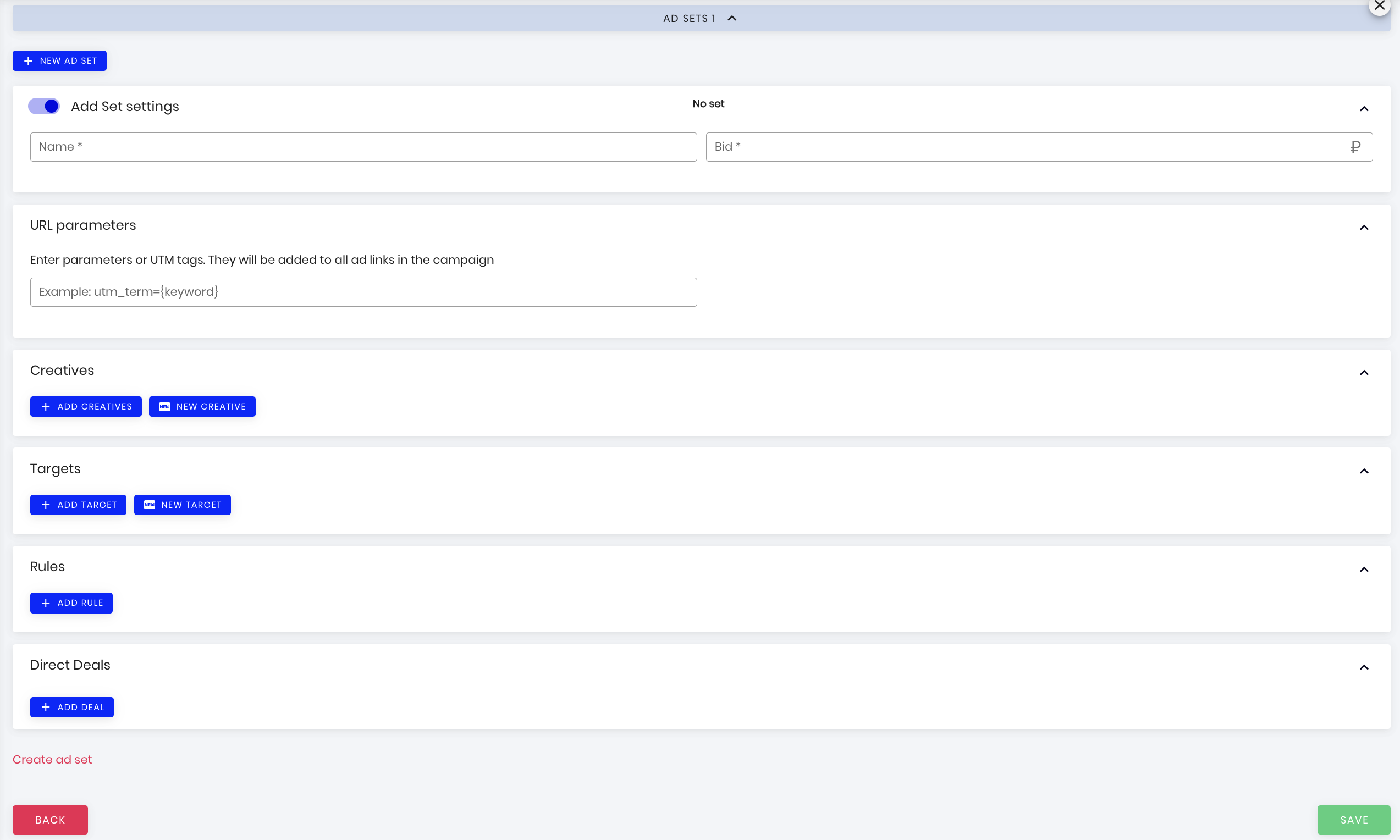
After selecting the campaign type, the ‘New’ button will appear in the ‘Creative Groups’ section. Clicking this button will allow you to start creating a creative group. You can create a new creative group in two ways:
- In the campaign details, click the ‘New group’ button.
- When viewing statistics for a creative group, click the ‘New group’ button. The view is available by clicking on the campaign name in the list of available campaigns.
The system does not limit the number of creative groups created for a campaign. Users can edit or delete creative groups at any time. After editing the parameters of a specific group, click the ‘Save’ button at the end of the creative groups list. Please note, editing a campaign in ‘Archived’ status is not available.
You can set a creative group as active (participating in the auction) or inactive (not participating). To do this, simply turn the switch on or off.


The same functionality is available at the creative level within a group.
A creative group is created for a specific campaign and cannot be reused in others. To create a new creative group, you need to fill out and select the following values:
- Group Name – assign a clear, identifiable name.
- Set the bid – the maximum value for cost per 1000 impressions or per click (depending on the selected strategy), at which the campaign is ready to participate in the auction.
- Define parameters or UTM tags that will be automatically appended to all links configured in the campaign’s ad settings.
- Add creatives. Select from previously created creatives matching the campaign type. No limit on the number of creatives per group.
- Add a target. The system will prompt you to select from the list of previously created targets. To launch the campaign, adding a target in ‘Active’ status is mandatory. Only one target can be added to a creative group.
- Add rules. Rules are not mandatory for launching the campaign; they are an additional configuration. The system does not limit the number of rules that can be added to a creative group.
- Add a direct deal – specify the Deal ID, bid, and SSP partner if the creative group should participate in buying traffic through a pre-agreed direct deal.
The Direct Deals block is used when traffic is purchased not only through the open auction, but also through a direct deal with a specific SSP partner.

To add a direct deal, fill in the following fields:
- Deal ID – enter the deal identifier that has been agreed in advance with the SSP partner. This information will be provided by your personal manager.
- Bid – specify the bid at which the creative group will participate in the auction for this deal.
- SSP – select the partner for whom the direct deal is configured.
- ONLY / FALLBACK – select the deal mode:
- ONLY – the creative group will participate only in requests with the specified Deal ID.
- FALLBACK – the creative group can use the deal as an additional buying scenario.
Several direct deals can be added to one creative group. If a deal is no longer needed, it can be deleted using the delete icon on the right side of the row.
The created creative group does not serve as the basis for allowing the campaign to participate in auctions. Please review all launch restrictions in the article ‘Campaign Participation Conditions in Auctions.‘