
 by
by This article outlines the main tools for controlling the current balance of funds in the system.
Invoice Generation Process
To generate an invoice:
- Navigate to the Finance section (sidebar menu)
- Click the “Top Up Balance” button
- Scroll down to the “Balance Top-Up Invoice” section
- Enter the desired top-up amount
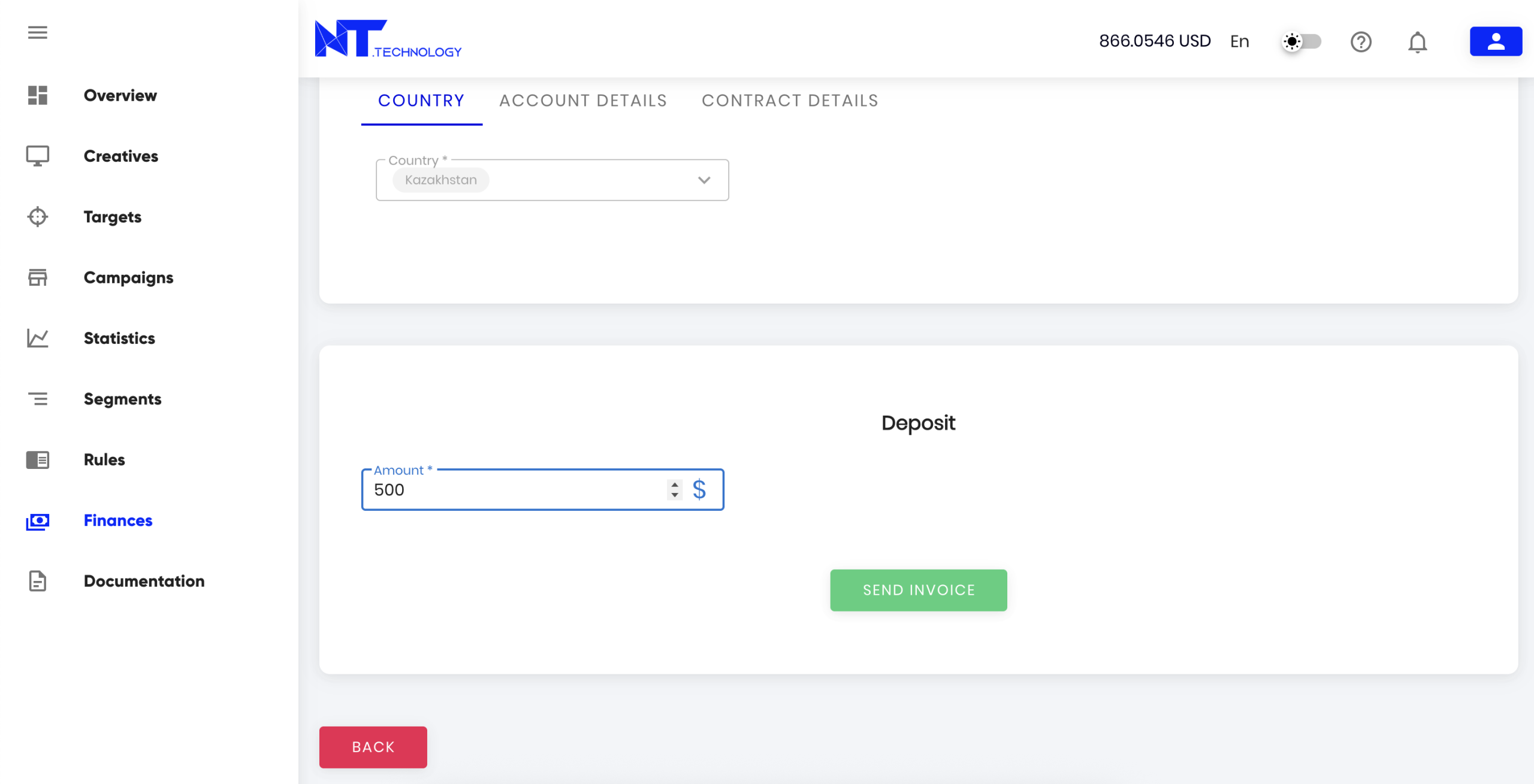
Important Notes:
- If VAT applies per your Contract, the top-up amount will be reduced according to the VAT rate
- The invoice will be generated in the currency specified in your Contract
Payment Process:
After submitting the invoice request:
- Your Manager will process the request and send a payment invoice with banking details
- You’ll receive a notification and can view/download the invoice in Finance → Payments
- The invoice will contain all necessary payment details for bank transfers
Payments
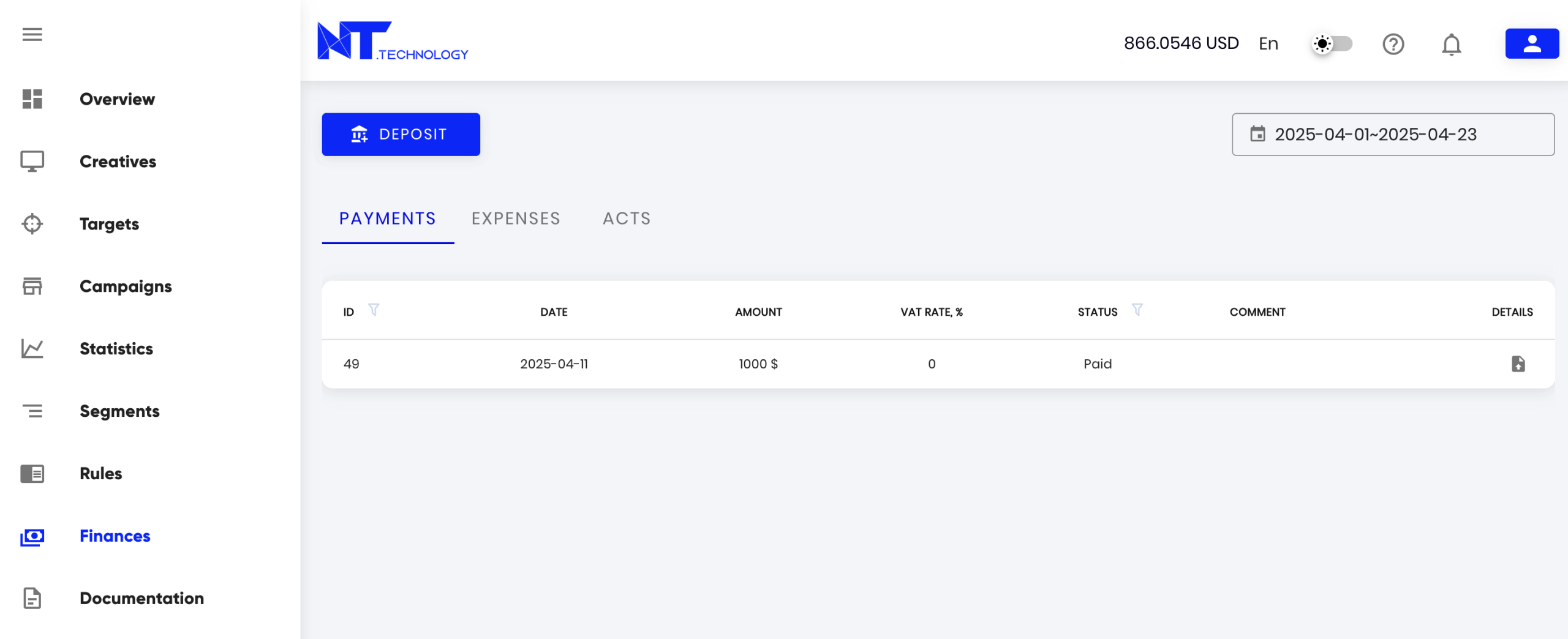
You can view the entire history of your account top-ups, as well as the statuses of processed payments. The “Payments” tab in the “Finance” section contains detailed information on all top-ups. Available features:
- Payment filter by date range and payment status.
- Sorting payments by amount and comments.
- Invoice download for each payment.
Expense History
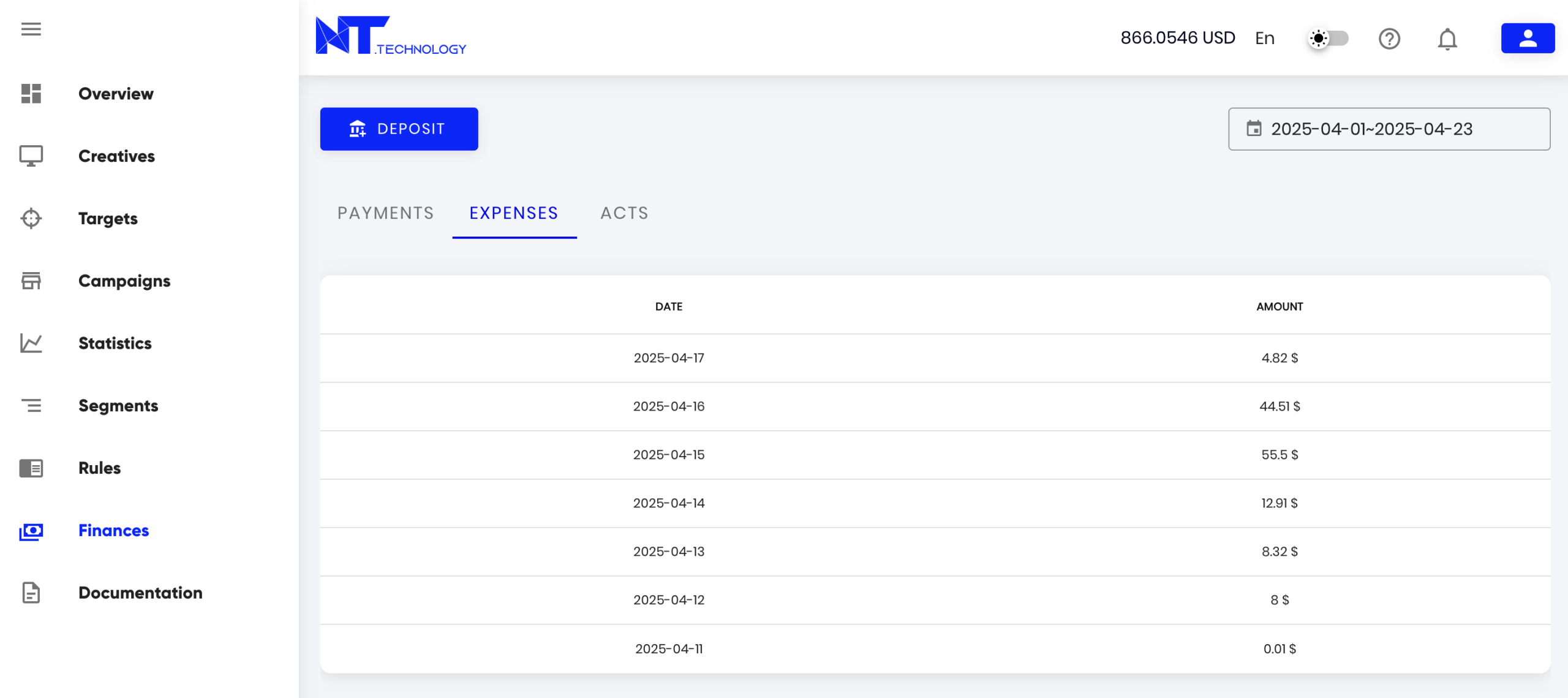
In the “Expenses” tab of the “Finance” section, you will find information about the expense amounts for all advertising campaigns by day. For easier navigation and searching, you can use the date range filter and sort by expense amounts.
Balance Movement Statement
At the end of each month, you will receive a balance movement statement for internal reporting. You can discuss the preferred format of the statement with your Manager. The statement will be sent during the first days of the month following the reporting period. You will receive a notification and can view