
 by
by Banner Creative is an advertisement that conveys the main message of a campaign to the target audience through an image.
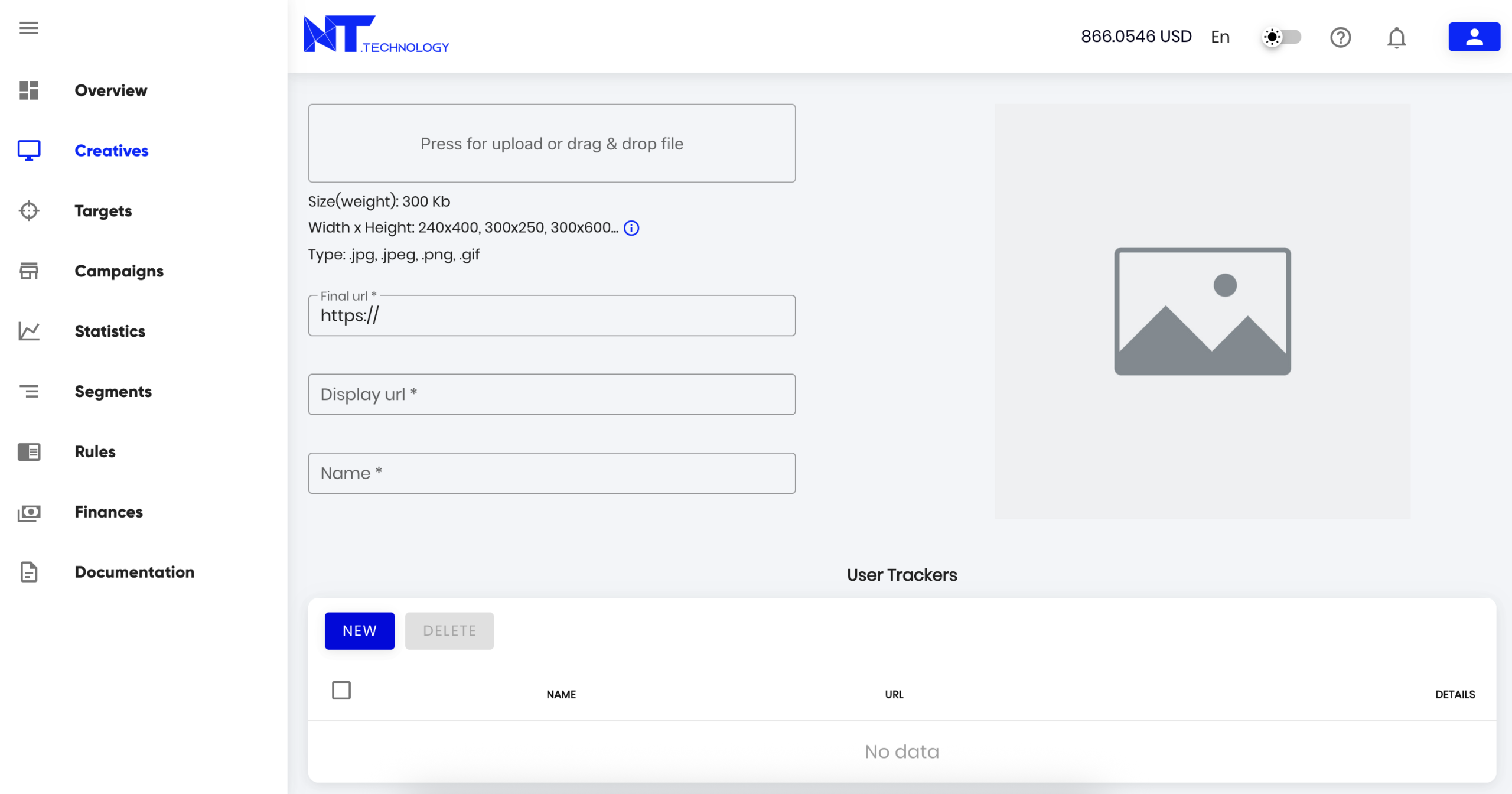
1. Uploading the Image
- Only supported file formats (listed on the upload page) will be accepted; others will fail to upload.
- After uploading, the original filename will appear in the “Name” field and can be edited.
2. Configuring the Ad Redirect
- Landing Page – The final destination URL where the creative leads.
- Display URL – A system-generated URL preview for the ad (can be modified).
3. Trackers
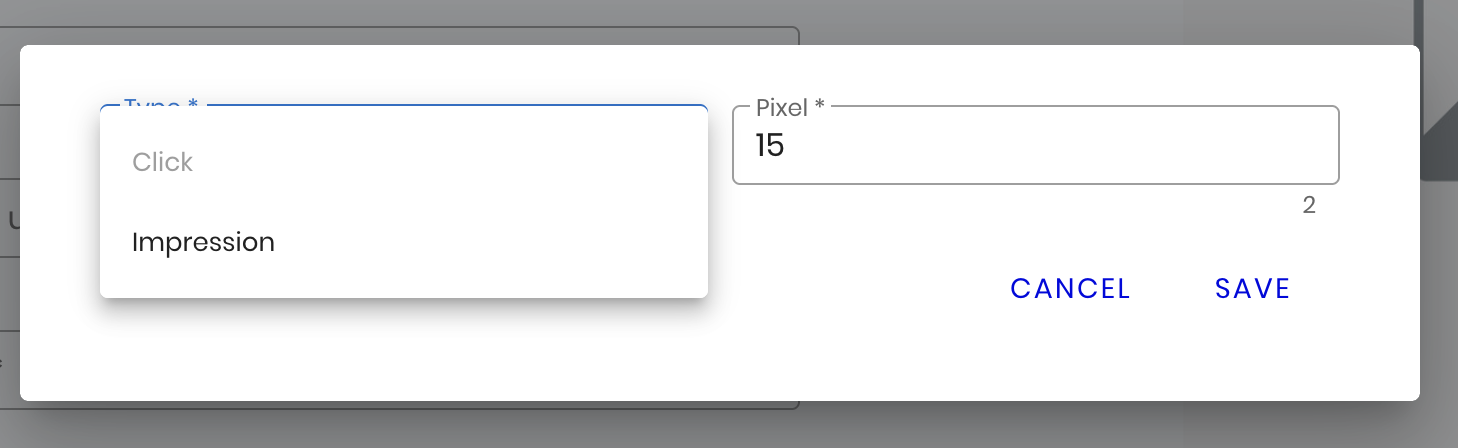
- Added in the “Trackers” section by clicking “New.”
- For each tracker type, specify the Pixel URL where data will be sent. This data will also be available in the “Statistics” section.
Two types of trackers are available for banners:
- Impression Pixel
- Click-through Link
4. Using HTML5 Banners
The system supports HTML5 banners. Follow the instructions below when creating these creatives:
- Create an HTML file containing the
<html>,<head>,<title>, and<body>tags. - Specify the creative dimensions by adding the following
<meta>tag, replacing[x]and[y]with the width and height in pixels:<meta name="ad.size" content="width=[x],height=[y]"> - Add a click tag using the following script:
<script type="text/javascript"> var clickTag = "#"; </script> - Wrap the main container
<div>containing the image or ad in an<a>tag to make it clickable:<a href="javascript:window.open(window.clickTag)"> <div id="container"> <img src="image.png" /> </div> </a> - Package all HTML5 banner files and assets into a single
.ziparchive.